> ## Documentation Index
> Fetch the complete documentation index at: https://docs.recepta.ai/llms.txt
> Use this file to discover all available pages before exploring further.
# Conditional Call Forwarding Based on Schedule
> Set up time-based call routing to automatically forward calls to Recepta.ai based on your business hours, specific days, or custom schedules
## Overview
Conditional call forwarding allows you to automatically route calls based on your business schedule. This ensures callers always reach someone - whether it's your team during business hours or your Recepta.ai AI assistant outside of them.
**Common use cases:**
* Forward calls to Recepta.ai **outside business hours**
* Route **weekend and holiday calls** to your AI receptionist
* Set up **overflow handling** when your team can't answer
* Create **hybrid schedules** with different routing per day
Calls go to your business line during working hours
Calls automatically forward to Recepta.ai when you're closed
AI handles all calls on non-business days
Forward to Recepta.ai when lines are busy or unanswered
***
## Getting Your Recepta.ai Phone Number
Before configuring conditional forwarding, you'll need your Recepta.ai phone number.
Navigate to your Recepta.ai dashboard at [https://app.recepta.ai](https://app.recepta.ai)
Click on **Settings** in the navigation menu
Your assigned Recepta.ai phone number is displayed under **Your Assigned Number**. Copy this number for use in your forwarding configuration.
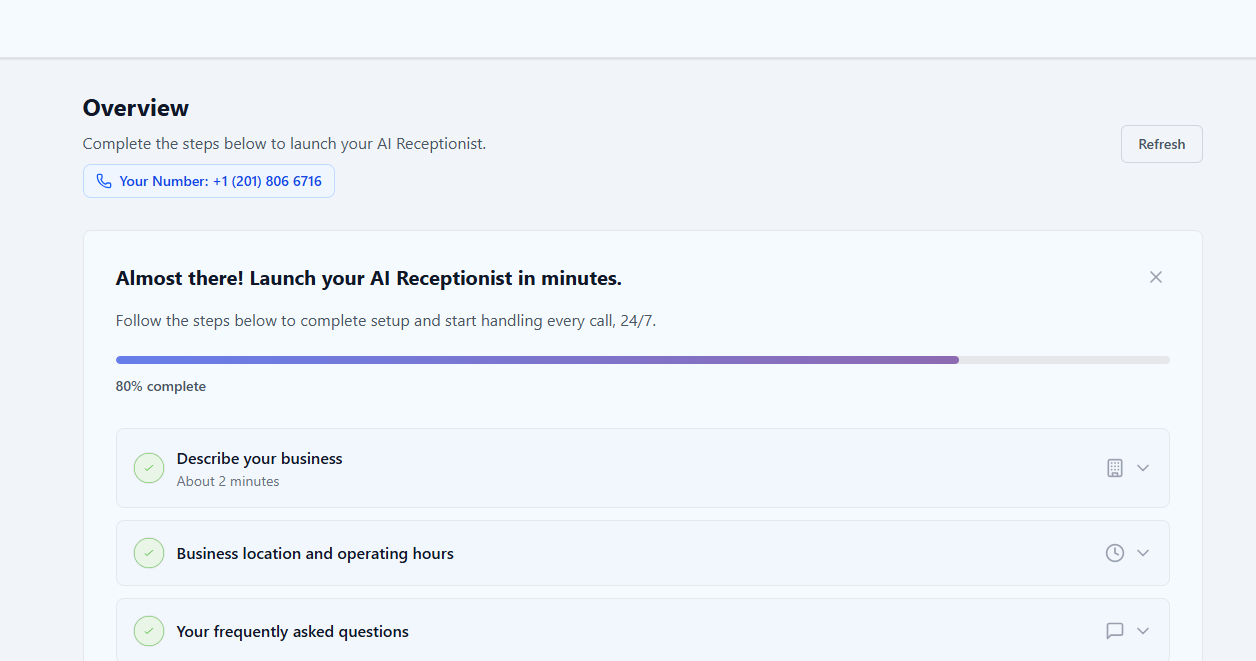 Your Recepta.ai number is a dedicated line for your business. All calls to this number are handled by your AI receptionist with your custom configuration.
***
## Setup by Carrier Type
Choose your phone system type below for specific instructions:
### AT\&T Conditional Call Forwarding
AT\&T supports three types of conditional forwarding:
**Forward when busy (line in use):**
```
*67*[Your Recepta.ai Number]#
```
**Forward when no answer (after 4 rings):**
```
*61*[Your Recepta.ai Number]#
```
**Forward when unreachable (phone off/no signal):**
```
*62*[Your Recepta.ai Number]#
```
* Disable busy forwarding: `#67#`
* Disable no-answer forwarding: `#61#`
* Disable unreachable forwarding: `#62#`
Dial these codes from your business phone, not from another device. You'll hear a confirmation tone when activated.
### Verizon Conditional Call Forwarding
**Forward when busy:**
```
*90[Your Recepta.ai Number]
```
**Forward when no answer:**
```
*92[Your Recepta.ai Number]
```
* Disable busy forwarding: `*900`
* Disable no-answer forwarding: `*920`
### T-Mobile Conditional Call Forwarding
**Forward when busy:**
```
**67*[Your Recepta.ai Number]#
```
**Forward when no answer:**
```
**61*[Your Recepta.ai Number]#
```
**Forward when unreachable:**
```
**62*[Your Recepta.ai Number]#
```
* Disable busy forwarding: `##67#`
* Disable no-answer forwarding: `##61#`
* Disable unreachable forwarding: `##62#`
### Traditional Landline Forwarding
Most landline providers support conditional forwarding. Contact your provider or try these common codes:
**Forward when busy:**
```
*90[Your Recepta.ai Number]
```
**Forward when no answer:**
```
*92[Your Recepta.ai Number]
```
Codes vary by provider. Contact your local phone company for exact instructions.
***
## VoIP & Business Phone Systems
For VoIP and PBX systems, you can configure sophisticated time-based routing rules directly in your admin portal.
### RingCentral
Log in to your RingCentral Admin Portal
Go to **Phone System** → **Auto-Receptionist** → **Call Handling**
Set your business hours schedule under the **Business Hours** section
Under **After Hours**, select **Forward calls to** and enter your Recepta.ai number
Click **Save** and test by calling outside business hours
For detailed RingCentral instructions, see our [RingCentral Call Forwarding Guide](/call-forwarding/ringcentral).
### 8x8
Access your 8x8 Admin Console
Navigate to **Call Handling** → **Time-Based Routing**
Create a new rule for calls received outside business hours
Configure the destination as your Recepta.ai phone number
For detailed 8x8 instructions, see our [8x8 Call Forwarding Guide](/call-forwarding/8x8).
### Dialpad
Log in to Dialpad and go to **Admin Settings**
Set your office hours under **Office** → **Business Hours**
Configure after-hours call routing to forward to your Recepta.ai number
For detailed Dialpad instructions, see our [Dialpad Call Forwarding Guide](/call-forwarding/dialpad).
### Google Voice
Go to [voice.google.com](https://voice.google.com) and click the gear icon
Select **Calls** from the settings menu
Under **Call forwarding**, add your Recepta.ai number
Use the scheduling options to set when forwarding is active
For detailed Google Voice instructions, see our [Google Voice Call Forwarding Guide](/call-forwarding/google-voice).
***
## Schedule-Based Routing Examples
### Example 1: Standard Business Hours
Forward all calls outside 9am-5pm Monday-Friday to Recepta.ai.
| Time | Destination |
| --------------------------- | ------------------ |
| Mon-Fri 9:00 AM - 5:00 PM | Your Business Line |
| Mon-Fri 5:00 PM - 9:00 AM | Recepta.ai |
| Saturday - Sunday (All Day) | Recepta.ai |
### Example 2: Extended Hours with Evening Coverage
Business handles calls during peak hours; Recepta.ai covers early morning and evening.
| Time | Destination |
| ------------------------- | ------------------ |
| Mon-Fri 8:00 AM - 8:00 PM | Your Business Line |
| Mon-Fri 8:00 PM - 8:00 AM | Recepta.ai |
| Weekends | Recepta.ai |
### Example 3: Overflow + After-Hours
Recepta.ai handles overflow during business hours AND all after-hours calls.
| Condition | Destination |
| -------------------------------------- | ------------------ |
| During business hours (answered) | Your Business Line |
| During business hours (busy/no answer) | Recepta.ai |
| After business hours | Recepta.ai |
### Example 4: Holiday Coverage
Special routing for holidays when your office is closed.
| Date | Destination |
| --------------------- | -------------- |
| Regular business days | Normal routing |
| New Year's Day | Recepta.ai |
| Memorial Day | Recepta.ai |
| July 4th | Recepta.ai |
| Labor Day | Recepta.ai |
| Thanksgiving | Recepta.ai |
| Christmas | Recepta.ai |
| Custom holidays | Recepta.ai |
***
## Best Practices
After setting up conditional forwarding:
1. Call your business number **during** business hours - verify it rings your team
2. Call your business number **after** hours - verify Recepta.ai answers
3. Test the "busy" scenario by keeping your line occupied
4. Test the "no answer" scenario by not picking up within the ring limit
Update your Recepta.ai greeting to acknowledge after-hours calls:
*"Thank you for calling \[Business Name]. Our office is currently closed. Our regular hours are Monday through Friday, 9am to 5pm Eastern. I'm an AI assistant and I'd be happy to help you, take a message, or schedule a callback."*
In your Recepta.ai dashboard, enable notifications to stay informed about after-hours activity:
* **Email notifications** - Receive summaries of calls handled
* **SMS alerts** - Get instant alerts for urgent messages
* **Daily digest** - Review all AI-handled calls each morning
Revisit your forwarding rules:
* Before holiday seasons (update holiday schedule)
* When business hours change (daylight saving, seasonal hours)
* During vacation periods (may want full forwarding)
* For special events or temporary closures
Update your voicemail greeting and website to let callers know they can reach assistance 24/7 through your AI receptionist.
***
## Troubleshooting
If calls aren't forwarding correctly, check these common issues:
| Issue | Solution |
| -------------------------------- | ---------------------------------------------------------- |
| Forwarding not activating | Try deactivating first (`#` codes), then reactivating |
| Calls going to voicemail instead | Disable voicemail or set call forwarding to take priority |
| Forwarding with delay | Reduce the ring count before forward triggers |
| Intermittent forwarding | Check your carrier's network status |
| Wrong number forwarding | Verify Recepta.ai number includes country code (+1 for US) |
### Still Having Issues?
Email our support team for help with configuration
See our platform-specific guides for detailed instructions:
* [RingCentral](/call-forwarding/ringcentral)
* [8x8](/call-forwarding/8x8)
* [Dialpad](/call-forwarding/dialpad)
* [Google Voice](/call-forwarding/google-voice)
***
## Related Guides
Complete RingCentral forwarding guide
Complete 8x8 forwarding guide
Complete Dialpad forwarding guide
Complete Google Voice forwarding guide
Your Recepta.ai number is a dedicated line for your business. All calls to this number are handled by your AI receptionist with your custom configuration.
***
## Setup by Carrier Type
Choose your phone system type below for specific instructions:
### AT\&T Conditional Call Forwarding
AT\&T supports three types of conditional forwarding:
**Forward when busy (line in use):**
```
*67*[Your Recepta.ai Number]#
```
**Forward when no answer (after 4 rings):**
```
*61*[Your Recepta.ai Number]#
```
**Forward when unreachable (phone off/no signal):**
```
*62*[Your Recepta.ai Number]#
```
* Disable busy forwarding: `#67#`
* Disable no-answer forwarding: `#61#`
* Disable unreachable forwarding: `#62#`
Dial these codes from your business phone, not from another device. You'll hear a confirmation tone when activated.
### Verizon Conditional Call Forwarding
**Forward when busy:**
```
*90[Your Recepta.ai Number]
```
**Forward when no answer:**
```
*92[Your Recepta.ai Number]
```
* Disable busy forwarding: `*900`
* Disable no-answer forwarding: `*920`
### T-Mobile Conditional Call Forwarding
**Forward when busy:**
```
**67*[Your Recepta.ai Number]#
```
**Forward when no answer:**
```
**61*[Your Recepta.ai Number]#
```
**Forward when unreachable:**
```
**62*[Your Recepta.ai Number]#
```
* Disable busy forwarding: `##67#`
* Disable no-answer forwarding: `##61#`
* Disable unreachable forwarding: `##62#`
### Traditional Landline Forwarding
Most landline providers support conditional forwarding. Contact your provider or try these common codes:
**Forward when busy:**
```
*90[Your Recepta.ai Number]
```
**Forward when no answer:**
```
*92[Your Recepta.ai Number]
```
Codes vary by provider. Contact your local phone company for exact instructions.
***
## VoIP & Business Phone Systems
For VoIP and PBX systems, you can configure sophisticated time-based routing rules directly in your admin portal.
### RingCentral
Log in to your RingCentral Admin Portal
Go to **Phone System** → **Auto-Receptionist** → **Call Handling**
Set your business hours schedule under the **Business Hours** section
Under **After Hours**, select **Forward calls to** and enter your Recepta.ai number
Click **Save** and test by calling outside business hours
For detailed RingCentral instructions, see our [RingCentral Call Forwarding Guide](/call-forwarding/ringcentral).
### 8x8
Access your 8x8 Admin Console
Navigate to **Call Handling** → **Time-Based Routing**
Create a new rule for calls received outside business hours
Configure the destination as your Recepta.ai phone number
For detailed 8x8 instructions, see our [8x8 Call Forwarding Guide](/call-forwarding/8x8).
### Dialpad
Log in to Dialpad and go to **Admin Settings**
Set your office hours under **Office** → **Business Hours**
Configure after-hours call routing to forward to your Recepta.ai number
For detailed Dialpad instructions, see our [Dialpad Call Forwarding Guide](/call-forwarding/dialpad).
### Google Voice
Go to [voice.google.com](https://voice.google.com) and click the gear icon
Select **Calls** from the settings menu
Under **Call forwarding**, add your Recepta.ai number
Use the scheduling options to set when forwarding is active
For detailed Google Voice instructions, see our [Google Voice Call Forwarding Guide](/call-forwarding/google-voice).
***
## Schedule-Based Routing Examples
### Example 1: Standard Business Hours
Forward all calls outside 9am-5pm Monday-Friday to Recepta.ai.
| Time | Destination |
| --------------------------- | ------------------ |
| Mon-Fri 9:00 AM - 5:00 PM | Your Business Line |
| Mon-Fri 5:00 PM - 9:00 AM | Recepta.ai |
| Saturday - Sunday (All Day) | Recepta.ai |
### Example 2: Extended Hours with Evening Coverage
Business handles calls during peak hours; Recepta.ai covers early morning and evening.
| Time | Destination |
| ------------------------- | ------------------ |
| Mon-Fri 8:00 AM - 8:00 PM | Your Business Line |
| Mon-Fri 8:00 PM - 8:00 AM | Recepta.ai |
| Weekends | Recepta.ai |
### Example 3: Overflow + After-Hours
Recepta.ai handles overflow during business hours AND all after-hours calls.
| Condition | Destination |
| -------------------------------------- | ------------------ |
| During business hours (answered) | Your Business Line |
| During business hours (busy/no answer) | Recepta.ai |
| After business hours | Recepta.ai |
### Example 4: Holiday Coverage
Special routing for holidays when your office is closed.
| Date | Destination |
| --------------------- | -------------- |
| Regular business days | Normal routing |
| New Year's Day | Recepta.ai |
| Memorial Day | Recepta.ai |
| July 4th | Recepta.ai |
| Labor Day | Recepta.ai |
| Thanksgiving | Recepta.ai |
| Christmas | Recepta.ai |
| Custom holidays | Recepta.ai |
***
## Best Practices
After setting up conditional forwarding:
1. Call your business number **during** business hours - verify it rings your team
2. Call your business number **after** hours - verify Recepta.ai answers
3. Test the "busy" scenario by keeping your line occupied
4. Test the "no answer" scenario by not picking up within the ring limit
Update your Recepta.ai greeting to acknowledge after-hours calls:
*"Thank you for calling \[Business Name]. Our office is currently closed. Our regular hours are Monday through Friday, 9am to 5pm Eastern. I'm an AI assistant and I'd be happy to help you, take a message, or schedule a callback."*
In your Recepta.ai dashboard, enable notifications to stay informed about after-hours activity:
* **Email notifications** - Receive summaries of calls handled
* **SMS alerts** - Get instant alerts for urgent messages
* **Daily digest** - Review all AI-handled calls each morning
Revisit your forwarding rules:
* Before holiday seasons (update holiday schedule)
* When business hours change (daylight saving, seasonal hours)
* During vacation periods (may want full forwarding)
* For special events or temporary closures
Update your voicemail greeting and website to let callers know they can reach assistance 24/7 through your AI receptionist.
***
## Troubleshooting
If calls aren't forwarding correctly, check these common issues:
| Issue | Solution |
| -------------------------------- | ---------------------------------------------------------- |
| Forwarding not activating | Try deactivating first (`#` codes), then reactivating |
| Calls going to voicemail instead | Disable voicemail or set call forwarding to take priority |
| Forwarding with delay | Reduce the ring count before forward triggers |
| Intermittent forwarding | Check your carrier's network status |
| Wrong number forwarding | Verify Recepta.ai number includes country code (+1 for US) |
### Still Having Issues?
Email our support team for help with configuration
See our platform-specific guides for detailed instructions:
* [RingCentral](/call-forwarding/ringcentral)
* [8x8](/call-forwarding/8x8)
* [Dialpad](/call-forwarding/dialpad)
* [Google Voice](/call-forwarding/google-voice)
***
## Related Guides
Complete RingCentral forwarding guide
Complete 8x8 forwarding guide
Complete Dialpad forwarding guide
Complete Google Voice forwarding guide