> ## Documentation Index
> Fetch the complete documentation index at: https://docs.recepta.ai/llms.txt
> Use this file to discover all available pages before exploring further.
# How to Forward Calls from CallRail to Recepta.ai
> Complete guide to forwarding your CallRail tracking numbers to Recepta.ai Voice Agent
## Overview
This guide will help you configure call forwarding from your CallRail tracking numbers to Recepta.ai, enabling your AI voice agent to answer incoming calls. CallRail customers can forward individual tracking numbers or set up call flows to route calls to Recepta.ai.
## Getting Your Recepta.ai Phone Number
Before configuring CallRail, you'll need to obtain your dedicated Recepta.ai phone number.
Navigate to your Recepta.ai dashboard at [https://recepta.ai/dashboard](https://recepta.ai/dashboard)
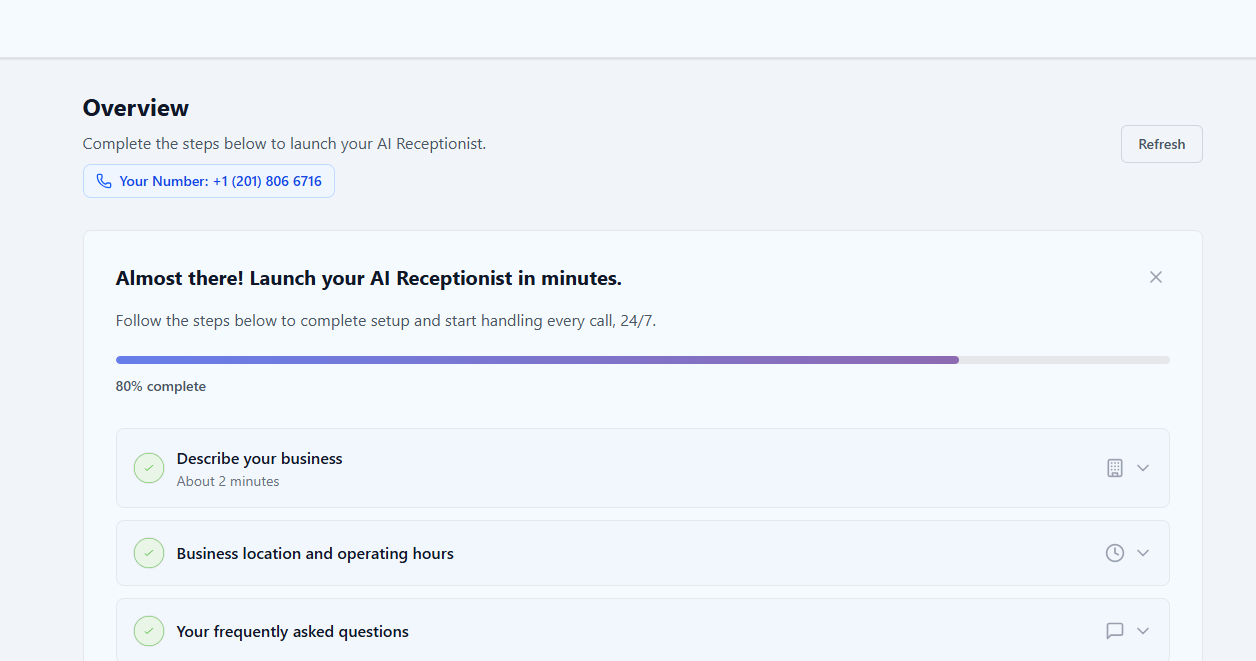
Your Recepta.ai phone number will be displayed in the dashboard. Copy this number as you'll need it for the CallRail configuration.
 Make sure you have completed setting up your AI voice agent configuration in Recepta.ai before forwarding calls.
***
## Method 1: Forward CallRail Tracking Number (Not Assigned to Call Flow)
Use these instructions to forward a tracking number that's **not** assigned to a call flow directly to Recepta.ai.
Click the **Settings** icon on the left navigation bar in your CallRail dashboard.
Choose the company whose tracking number you'd like to update.
Click the **pencil icon** for the tracking number you'd like to update to go to its main configuration page.
On the configuration screen, click the **pencil icon** in the upper-right of the **Number Options** menu.
Under **Forward Calls To**, select **Number** and enter your Recepta.ai phone number (obtained from your dashboard).
Your destination number must be a U.S. or Canada number, or in the same country as your tracking number.
Scroll to the bottom of the section and select **Save** to update your number.
***
## Method 2: Forward Using CallRail Call Flows
If you're using CallRail's Call Flow feature, follow these instructions to route calls through your call flow to Recepta.ai.
### Setup Instructions
Click the **Settings** icon on the left navigation bar.
Choose the **company** where you'd like to assign a call flow to a tracking number.
In the "**Forward Calls To**" column, choose the call flow you'd like to assign to a tracking number.
Click **Save and update call flow** on the prompt.
In your Call Flow Builder, at the point when you want calls forwarded to Recepta.ai, use the **Dial** step.
We recommend **not** using the Round Robin step, as this will not ensure your calls always reach Recepta.ai.
In the Dial step, enter your Recepta.ai phone number as the destination.
Click **Save** to activate your call forwarding configuration.
### Best Practices for Call Flows
Always use the Dial step (not Round Robin) to ensure calls consistently reach Recepta.ai.
Configure different call flows for business hours vs. after-hours to optimize call handling.
Make test calls after configuration to verify calls are routing correctly to your AI agent.
Use both CallRail and Recepta.ai analytics to track call performance and quality.
***
## Advanced Configuration Options
### Business Hours Routing
You can configure different routing rules based on your business hours:
* **During Business Hours**: Route to your team first, then overflow to Recepta.ai
* **After Hours**: Route all calls directly to Recepta.ai
* **Holidays**: Set special routing rules for holidays and special occasions
### Call Flow Strategies
All calls immediately forward to Recepta.ai. Best for businesses that want 24/7 AI coverage.
Calls ring your team first (5-10 seconds), then forward to Recepta.ai if unanswered. Minimizes wait time while ensuring no calls are missed.
Different routing rules for different times of day. Combine human and AI coverage based on your schedule.
***
## Troubleshooting
* Verify you entered the correct Recepta.ai phone number
* Check that your CallRail number is active and properly configured
* Ensure your Recepta.ai agent is set up and active
* Test by calling your CallRail number directly
* Verify your internet connection is stable
* Check CallRail's system status page
* Review call logs in both CallRail and Recepta.ai dashboards
* Contact Recepta.ai support if issues persist
* Verify the Dial step is configured (not Round Robin)
* Check that the call flow is properly assigned to your tracking number
* Review the call flow logic to ensure it reaches the Dial step
* Test the call flow with a live call
***
## Next Steps
After configuring call forwarding:
Make test calls to verify everything is working correctly
Fine-tune your AI agent's responses and behavior
Monitor incoming calls and agent performance
Track metrics and optimize your call handling
***
## Need Help?
Contact our support team at [support@recepta.ai](mailto:support@recepta.ai)
Browse our comprehensive documentation
Join our community forum for tips and best practices
Book a personalized walkthrough with our team
Make sure you have completed setting up your AI voice agent configuration in Recepta.ai before forwarding calls.
***
## Method 1: Forward CallRail Tracking Number (Not Assigned to Call Flow)
Use these instructions to forward a tracking number that's **not** assigned to a call flow directly to Recepta.ai.
Click the **Settings** icon on the left navigation bar in your CallRail dashboard.
Choose the company whose tracking number you'd like to update.
Click the **pencil icon** for the tracking number you'd like to update to go to its main configuration page.
On the configuration screen, click the **pencil icon** in the upper-right of the **Number Options** menu.
Under **Forward Calls To**, select **Number** and enter your Recepta.ai phone number (obtained from your dashboard).
Your destination number must be a U.S. or Canada number, or in the same country as your tracking number.
Scroll to the bottom of the section and select **Save** to update your number.
***
## Method 2: Forward Using CallRail Call Flows
If you're using CallRail's Call Flow feature, follow these instructions to route calls through your call flow to Recepta.ai.
### Setup Instructions
Click the **Settings** icon on the left navigation bar.
Choose the **company** where you'd like to assign a call flow to a tracking number.
In the "**Forward Calls To**" column, choose the call flow you'd like to assign to a tracking number.
Click **Save and update call flow** on the prompt.
In your Call Flow Builder, at the point when you want calls forwarded to Recepta.ai, use the **Dial** step.
We recommend **not** using the Round Robin step, as this will not ensure your calls always reach Recepta.ai.
In the Dial step, enter your Recepta.ai phone number as the destination.
Click **Save** to activate your call forwarding configuration.
### Best Practices for Call Flows
Always use the Dial step (not Round Robin) to ensure calls consistently reach Recepta.ai.
Configure different call flows for business hours vs. after-hours to optimize call handling.
Make test calls after configuration to verify calls are routing correctly to your AI agent.
Use both CallRail and Recepta.ai analytics to track call performance and quality.
***
## Advanced Configuration Options
### Business Hours Routing
You can configure different routing rules based on your business hours:
* **During Business Hours**: Route to your team first, then overflow to Recepta.ai
* **After Hours**: Route all calls directly to Recepta.ai
* **Holidays**: Set special routing rules for holidays and special occasions
### Call Flow Strategies
All calls immediately forward to Recepta.ai. Best for businesses that want 24/7 AI coverage.
Calls ring your team first (5-10 seconds), then forward to Recepta.ai if unanswered. Minimizes wait time while ensuring no calls are missed.
Different routing rules for different times of day. Combine human and AI coverage based on your schedule.
***
## Troubleshooting
* Verify you entered the correct Recepta.ai phone number
* Check that your CallRail number is active and properly configured
* Ensure your Recepta.ai agent is set up and active
* Test by calling your CallRail number directly
* Verify your internet connection is stable
* Check CallRail's system status page
* Review call logs in both CallRail and Recepta.ai dashboards
* Contact Recepta.ai support if issues persist
* Verify the Dial step is configured (not Round Robin)
* Check that the call flow is properly assigned to your tracking number
* Review the call flow logic to ensure it reaches the Dial step
* Test the call flow with a live call
***
## Next Steps
After configuring call forwarding:
Make test calls to verify everything is working correctly
Fine-tune your AI agent's responses and behavior
Monitor incoming calls and agent performance
Track metrics and optimize your call handling
***
## Need Help?
Contact our support team at [support@recepta.ai](mailto:support@recepta.ai)
Browse our comprehensive documentation
Join our community forum for tips and best practices
Book a personalized walkthrough with our team